 - Zoom Guide
Onboarding and Motion Meetings Account Creation for Host Role
- Here you can see the events created on Motion Meetings from the Zoom meeting setup.
- To use the Zoom app MotionVote, the host or admin of the Zoom account must first complete an onboarding with a Motion Meetings.
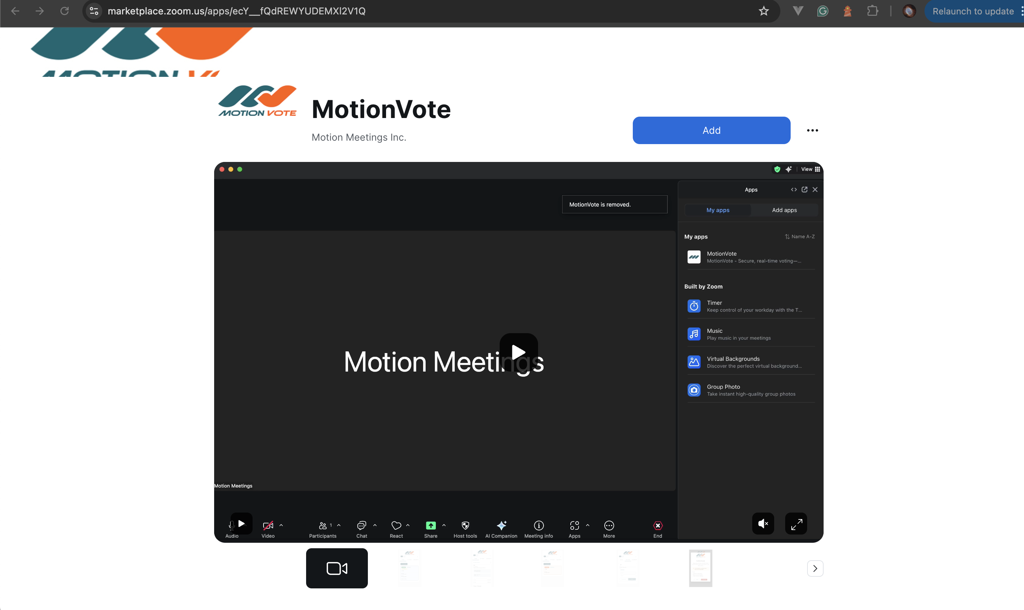
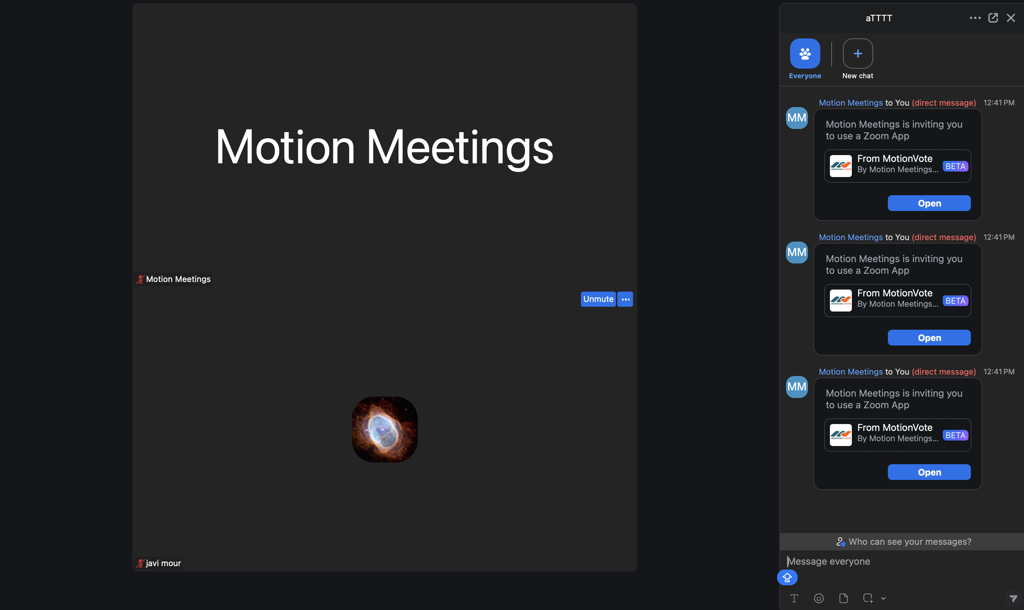
- This onboarding will take place using Zoom. Motion Meetings will have the MotionVote app pre-installed on their account. When the host or admin joins the session, they will automatically receive a prompt to install the voting app to their account.
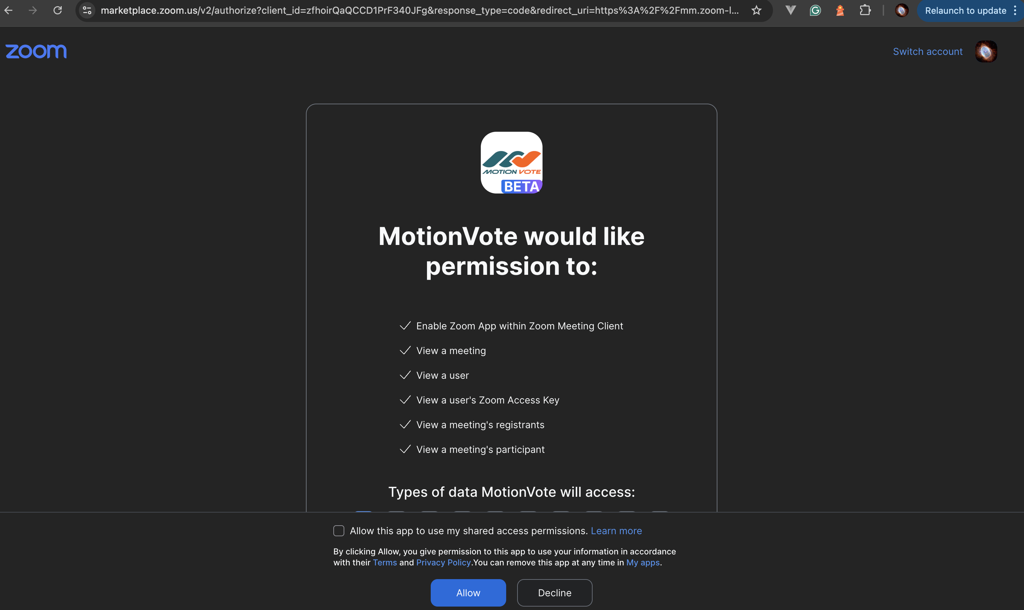
- Once the host or admin selects Add, they will be redirected to accept the app’s permissions.
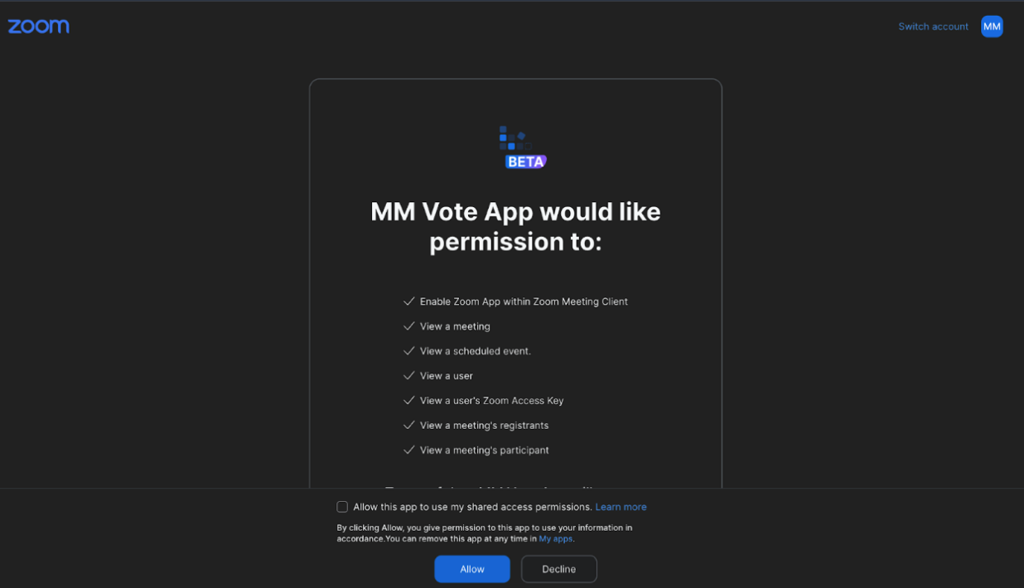
- Once permission is granted, the system will automatically create an organization in Motion Meetings using the Zoom
account_id. It will also create an Organization Admin user using the host or admin's email address. - The host or admin will receive an email notification with login credentials for the newly created account on Motion Meetings.
- They can then log in to the Motion Meetings platform to view and manage their account.
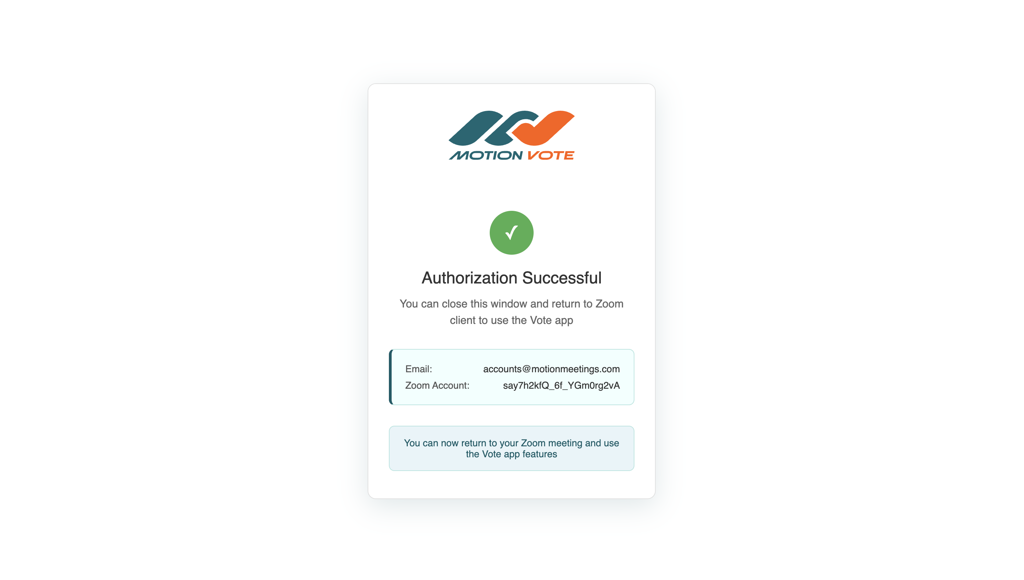
- After the organization and Organization Admin are created, the host or admin is ready to use the MotionVote app on the Zoom meetings created on this account.
How to Create a Zoom Meeting with Voting
- To start using the MotionVote app on Zoom, the host or admin creates a meeting on Zoom’s Schedule a Meeting function.
- For MotionVote to function properly, the Zoom meeting must have "Registration Required" enabled. This setting is mandatory for the app to work.
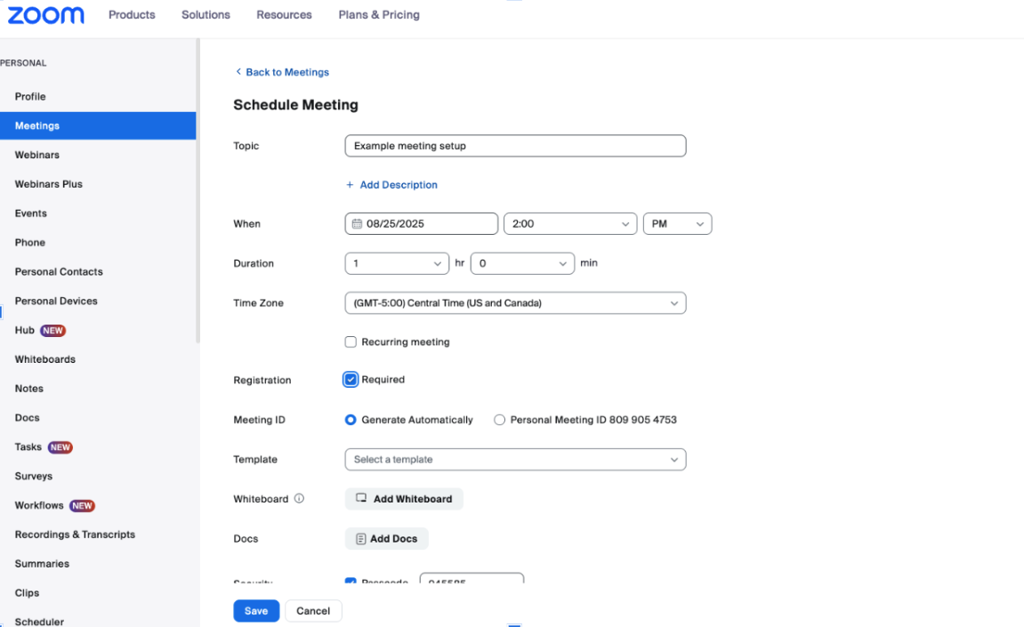
- If the host or admin wants to have a co-host on the event, the co-host should be added during the meeting setup.
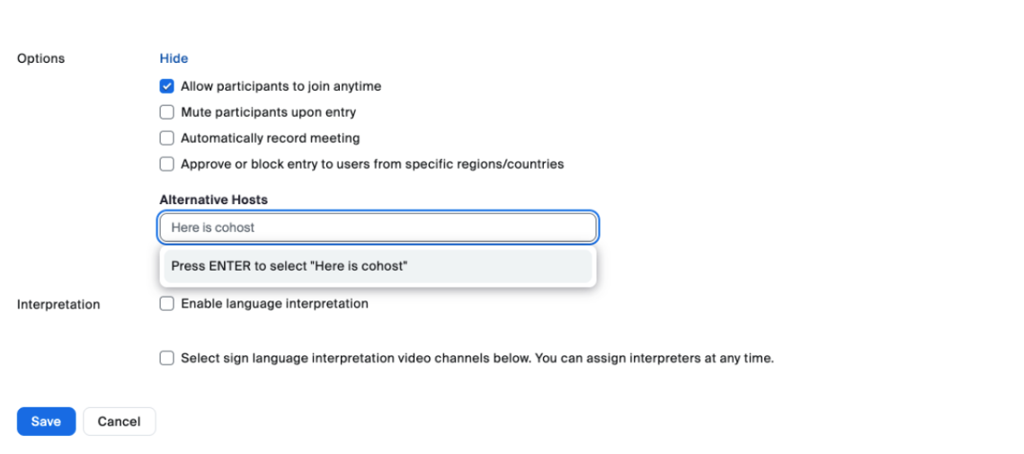
- Once saved, the system will automatically create a voting event on Motion Meetings’ system. It will add the admin or host as a Speaker in Motion Meetings. If a co-host was added, it will add that person as a Speaker as well. On Motion Meetings, the Speaker role can create, start or stop, and delete votes, as well as show results of votes to participants.
- To add Attendees, the host will need to add participants in Zoom. For this action, the host will use the Registration option that the Zoom setup interface provides.
- The host will import a CSV of the participants that they would like to invite to the meeting. In the CSV formatted template, first name and last name and email are required.
- Once the CSV has been submitted, the participants will be added into the Motion Meetings system as attendees. Participants, or attendees as they are called in Motion Meetings, can only see and respond to active votes, and see results if shared by the host or co-host.
Using the MotionVote App on Zoom – Hosts, Co-Hosts and Admins
- Once the meeting has been created, the host or co-host can open the MotionVote app on Zoom from the My Apps area on the right side of the bar.
-
Here are the steps for a host or co-host to create a vote:
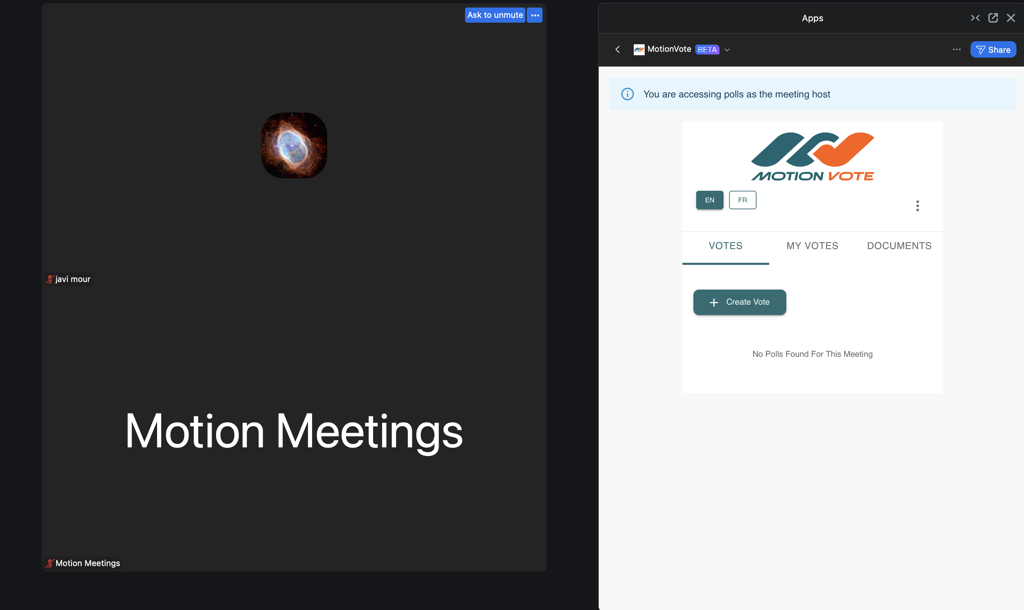
- Click Create Vote.
- Choose the ballot type (Plurality, Single-Transferable, Multi-Position). For descriptions of the different ballot types, visit MotionMeetings Help Center.
- Type in the vote question.
- Type in the vote response options (for plurality and single transferable are a maximum of 9 options). For Multi-Position, you can enter up to 50 options.
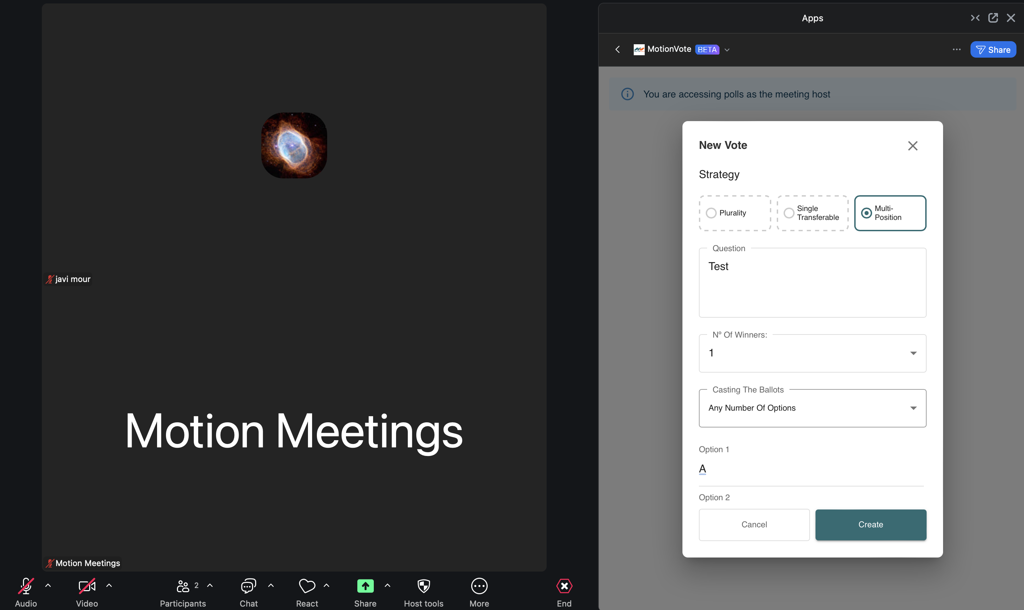
- Once the vote has been created, it will appear on the host’s and co-host’s MotionVote main screen.
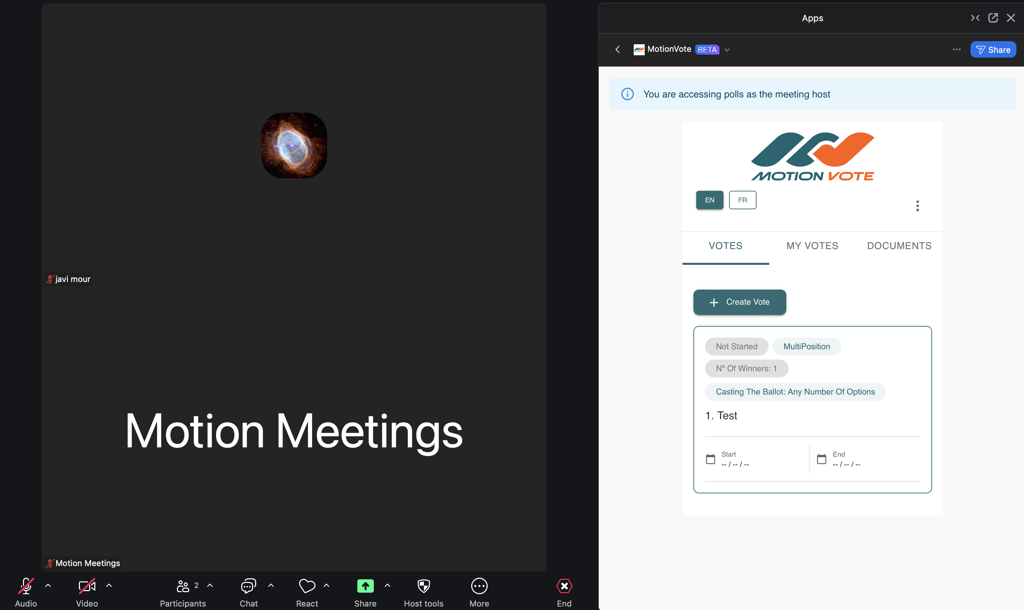
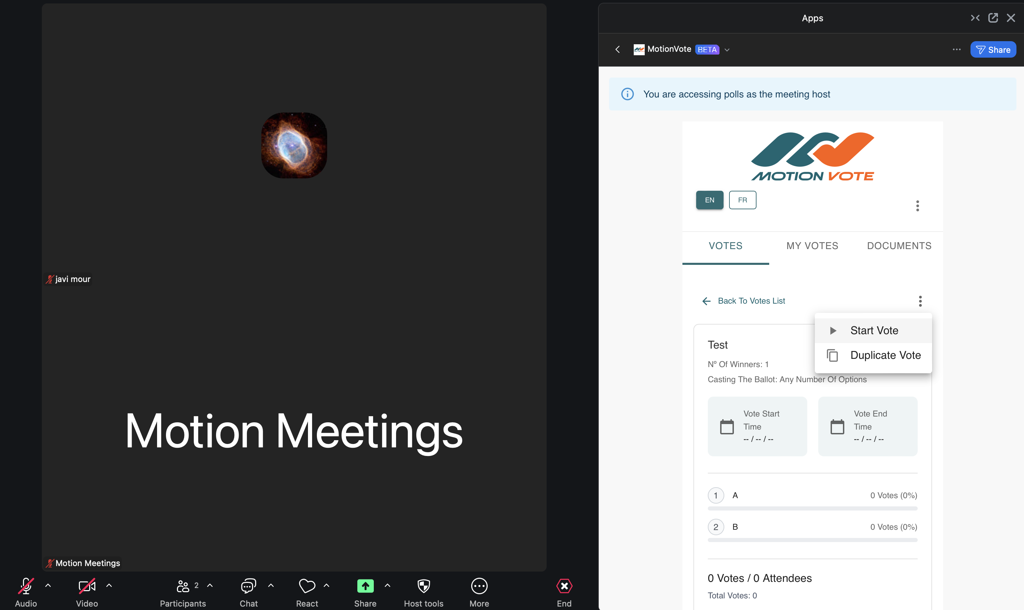
- To start a vote, select the desired vote and click on the three dots to open a drop-down menu. Select Start Vote.
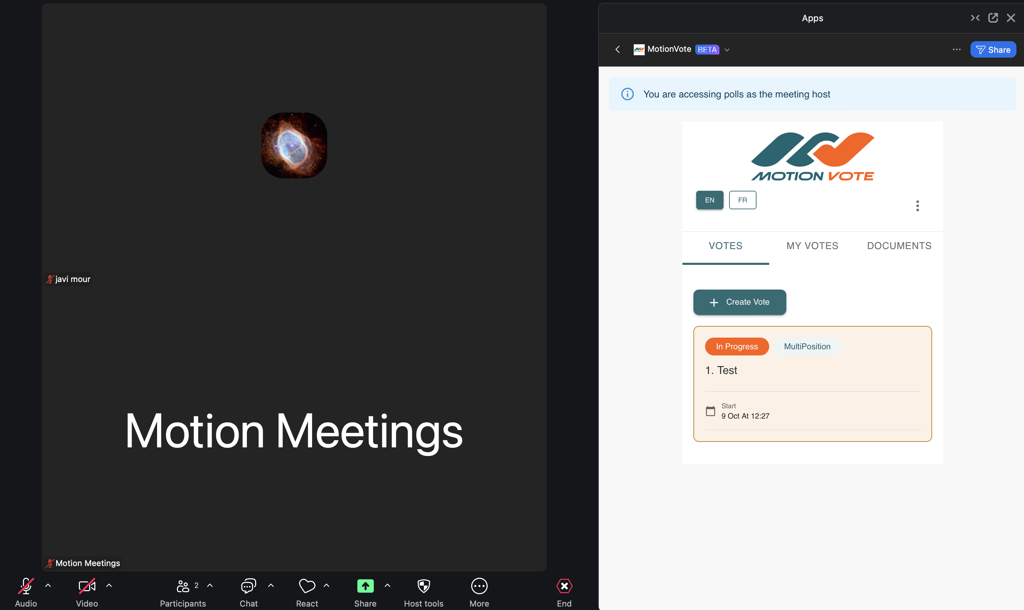
- Once started, this is what the vote will look like for the host and co-host:
- If the host or co-host has the right to vote, they should click on My Votes tab to cast their ballot.
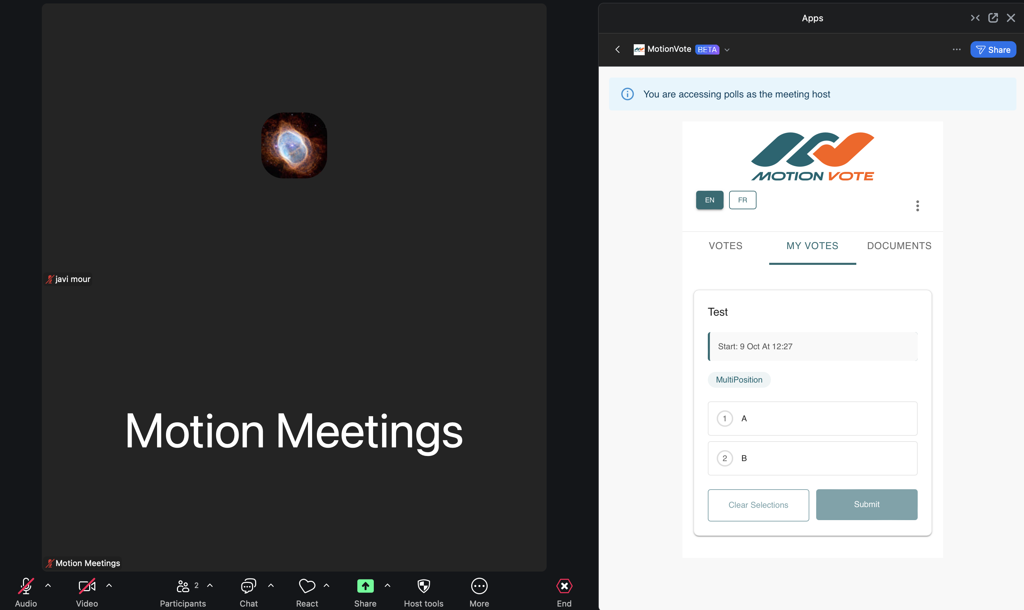
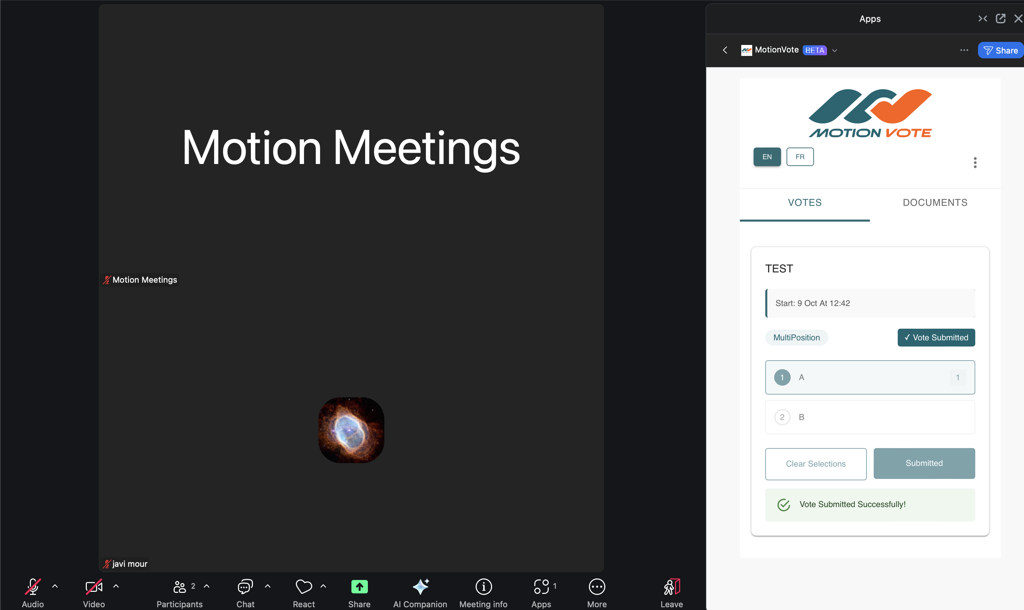
- To cast a ballot, click one (or more) of the options, depending on the ballot type. This will activate the Submit button.
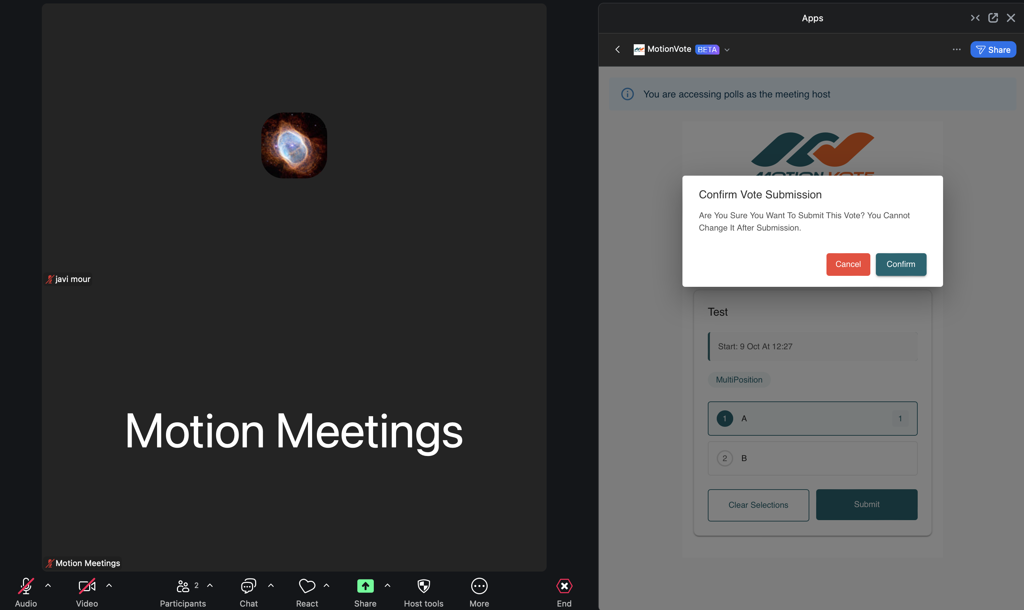
- Once Submit has been clicked, a window asking to Confirm the vote will become visible. When Confirm has been clicked, the vote has been submitted. Once submitted, you are not able to change your vote.
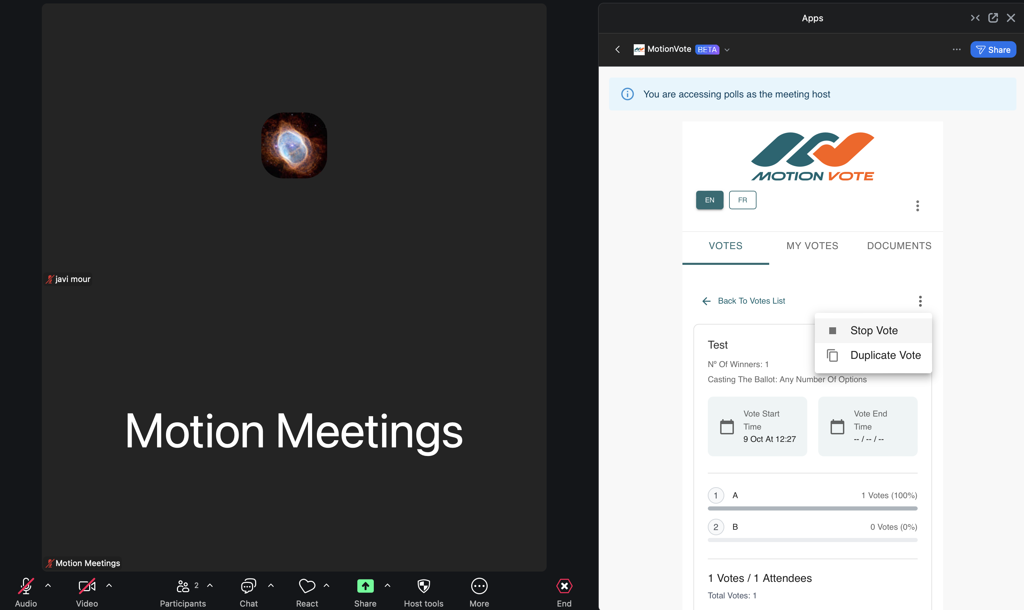
- If the host or co-host needs to stop the voting, click on the three dots and select Stop Vote.
-
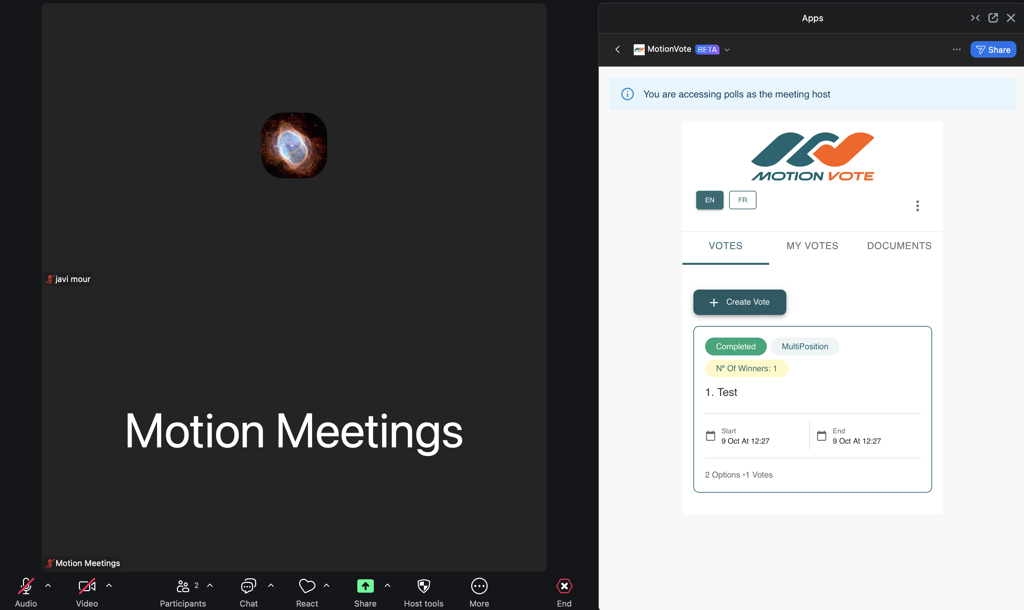
Once stopped, the host or co-host panel should look like the screenshot below:
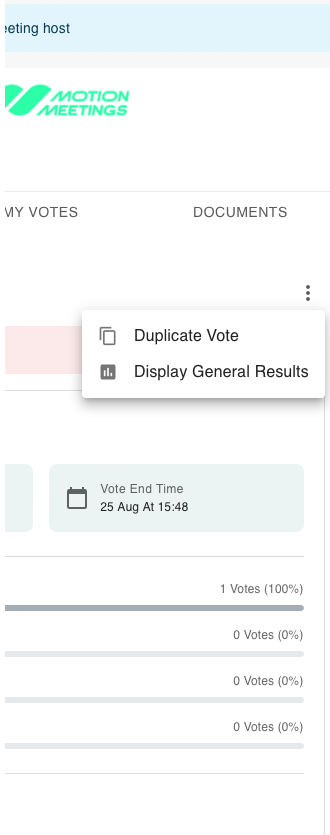
- To display the vote results to the participants in the meeting, click the desired vote, the three dots, and select Display General Results.
- To duplicate a vote, click the three dots and select Duplicate Vote. This will copy the question and options to a new ballot.
Note: Only one vote can be active at a time. If you are unable to start a new one, another vote is likely still running. If Display General Results is active, click the three dots and select Hide General Results before starting a new vote.
Using the MotionVote App on Zoom for Attendees
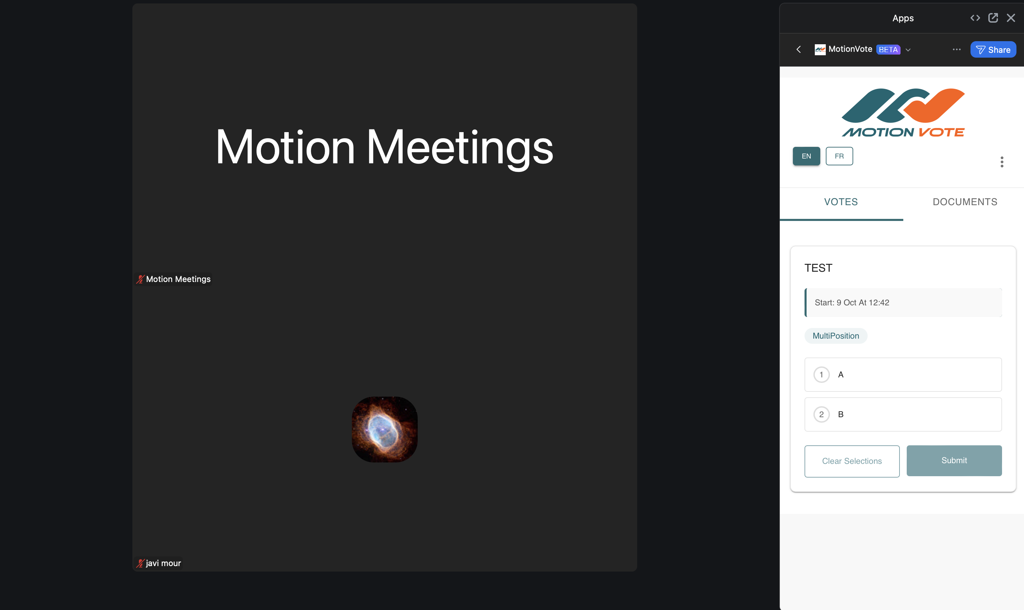
- Attendees will see in the chat a direct message from the host asking to install the MotionVote app.
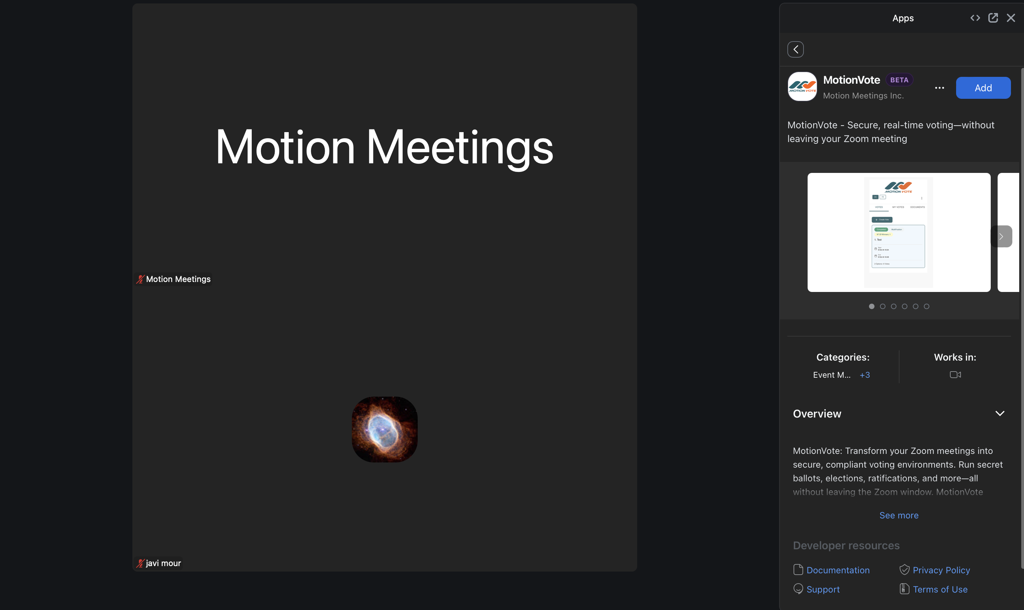
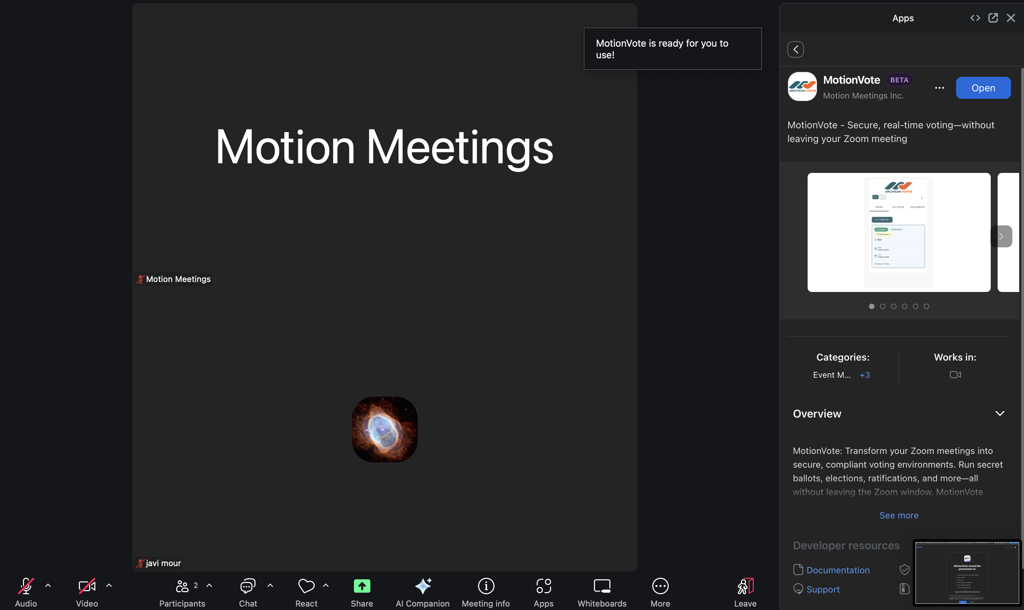
Once they accept the invitation, the app will appear in their Zoom window and be ready for voting.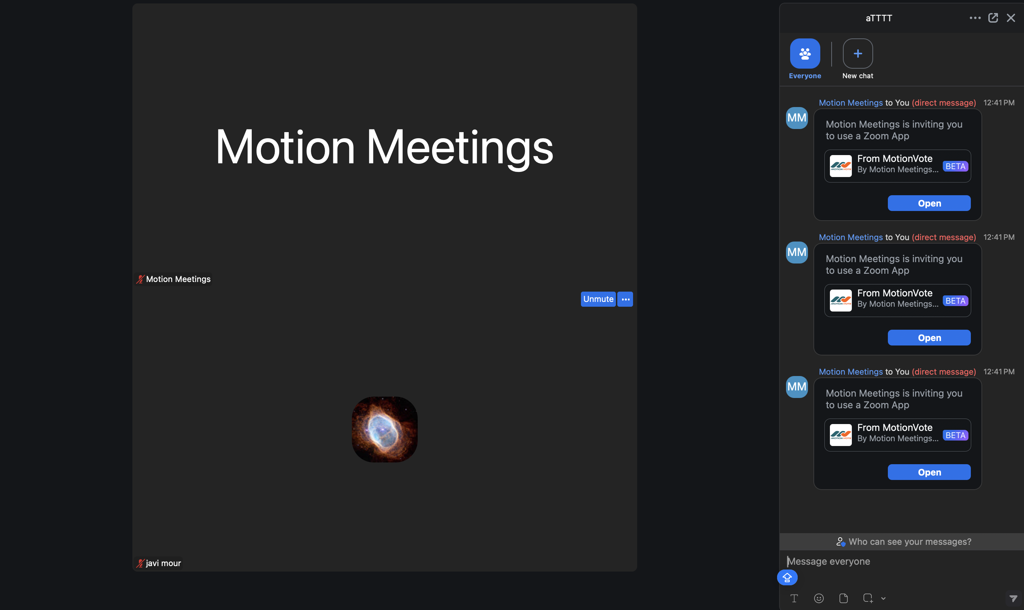
- Participants will only see a vote if a vote is active, or if the host or co-host has clicked Display General Results following the completion of a vote.
Uninstall Motion Vote App
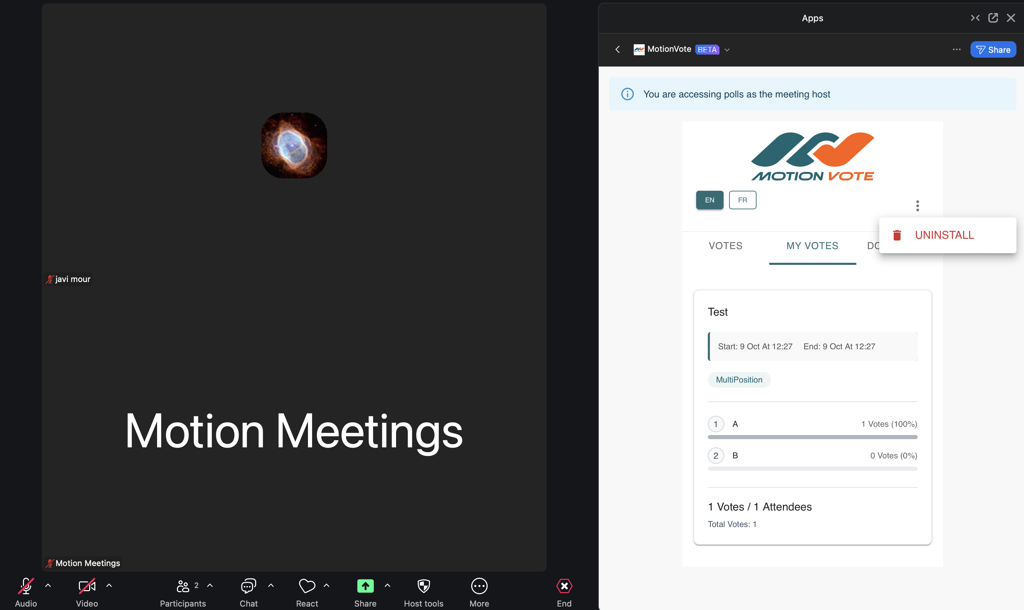
To uninstall the app from your Zoom account, follow the next steps:
- Click on UNINSTALL button.
- An Uninstall popup will appear where the user will see uninstall notes. Press UNINSTALL to complete the process.
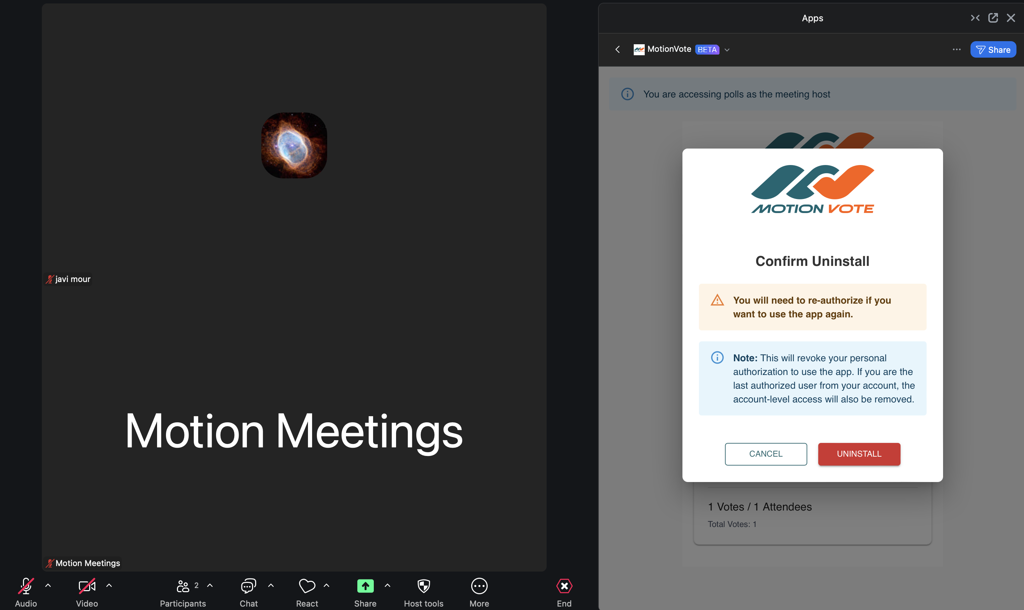
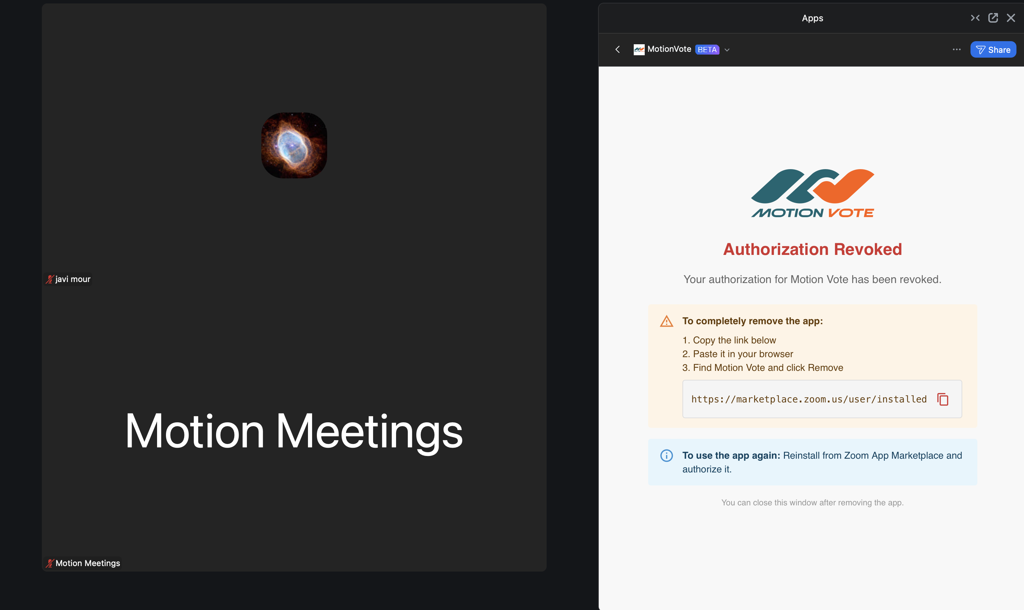
- Once UNINSTALL is pressed, authorization will be revoked and you will not be able to use the Vote app in the future. If you change your mind, you will need to reactivate the app in your Zoom account.
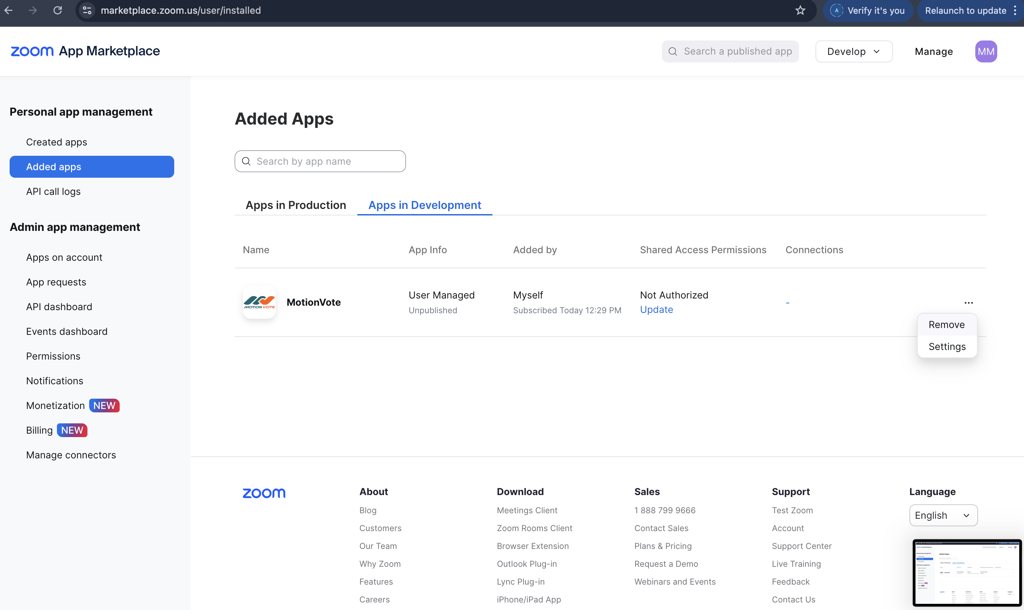
- To completely remove the app, copy the link in the ‘Authorization Revoked’ window, paste the link into your browser and go to the App Marketplace
- Find the MotionVote app and remove it.
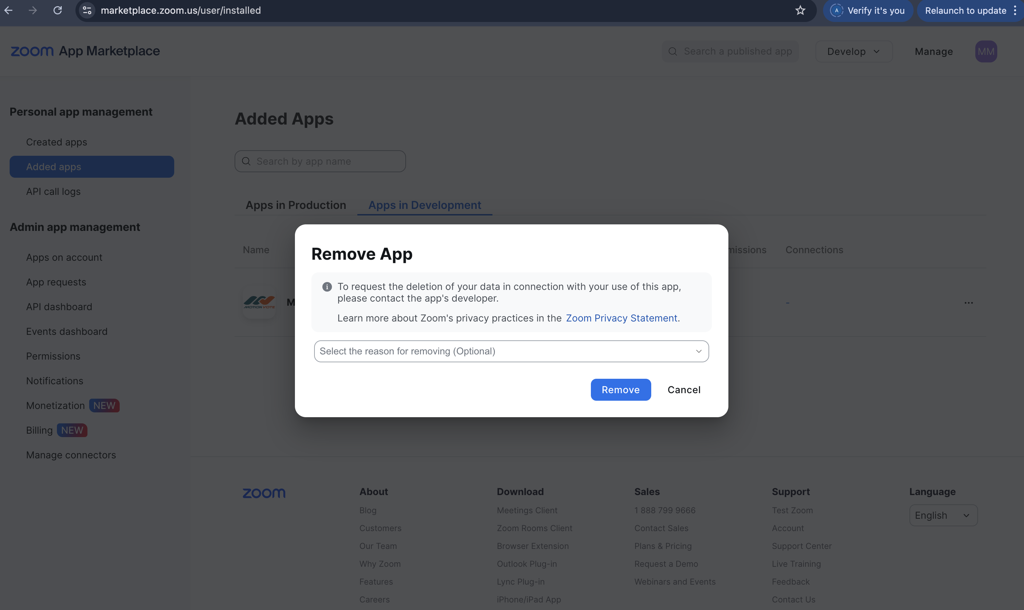
- Once removed, the app will not be shown on your Zoom client. To reactivate use, you’ll need to authorize the app again.